

Managing a Shopify store often requires multiple people working together seamlessly. Learning how to gain access and invite users to your Shopify store is essential for efficient teamwork. This guide walks you through the simple steps to invite collaborators and assign the right permissions, ensuring your store runs smoothly with the right support.
Understanding Shopify User Roles and Permissions
Shopify features a few key user roles: Store Owner, Staff Accounts, and Collaborators.
Store Owner has the highest level of permission. They can access all areas of the Shopify admin, including billing and store settings.
Staff Accounts have modular permissions dictated by the Store Owner. They can manage products, fulfill orders, and even view reports, but they can’t access sensitive areas such as billing unless granted explicit permission.
Collaborators, typically third-party professionals, have limited access to manage specific areas of the store. Their permissions are unique to each task assigned.
Assigning these roles provides two important benefits: security and operational efficiency. It helps limit potential breaches and allows for smoother management as everyone clearly understands their tasks and areas of responsibility.
In the coming chapter, we will delve deeper into how new users can gain access to a Shopify store, ensuring a smooth transition into their assigned roles and tasks. Managing user roles and permissions effectively is crucial for successful Shopify store operation. Be sure to understand your team members’ responsibilities before granting them access.
Gaining Access to a Shopify Store as a New User
Once a store owner assigns you a role and sends a Shopify invitation, you can start the process of gaining access to the online store. You’ll receive an email with an invitation link. Click on this link and set a secure password to create your Shopify account.
After setting up your account, log into the Shopify admin portal using your email and freshly set password. If you’re logging in for the first time, Shopify will prompt you to create a user profile. However, remember that your permissions and access will be restricted based on the user role assigned to you by the store owner.
The Shopify dashboard is where you can navigate and perform your assigned tasks. At first, it may seem overwhelming with different tabs and features, but it’s quite streamlined. Based on your allocated permissions, you will or won’t be able to see and access different parts of the store.
For example, if you’ve been given product management rights, you’ll be able to add, edit, and delete products. Whereas, if you have order fulfillment rights, you’ll be able to view and manage orders, but not necessarily manipulate product listings.
If you encounter any access issues, contact the store owner or admin. Perhaps there might be an error in assigned permissions, or the access problem might be due to an internal glitch Shopify might be experiencing at that time. The prime agenda is to start with a smooth setup to ensure efficient store management.
Inviting Users to Your Shopify Store Step by Step
To ensure smooth operations, it’s essential to invite new users to your Shopify store.
Step 1: Navigate to the ‘Users’ Section
After logging in, from your Shopify admin, go to ‘Settings’ and then ‘Users.’
Step 2: Sending Invitations
Select ‘Add User,’ fill in the user’s full name, email address and then click ‘Send Invite.’ The new user will then receive an email with instructions on how to access your store, similar to the process outlined in the previous chapter.
Step 3: Choosing User Roles and Permissions
When inviting new users, carefully choose their roles. Roles dictate the actions the user can carry out. Shopify offers a variety of roles such as the owner, staff, and collaborators. Assigning a role restricts or enables access to specific admin sections.
Step 4: Manage Existing Users
In ‘Settings,’ ‘Users and Permissions’, your collaborators are listed. Here, you can alter their permissions, delete users, or resend invitations.
Best Practices for Store Security
In terms of store security, it’s advised to regularly revise the roles assigned to individuals. Restricting access to crucial sections can mitigate risks. Where sensitive data is concerned, enable two-step authentication for an additional layer of security.
Tips for Effective User Management
By categorizing access levels, you can effectively delegate tasks while maintaining control over critical store areas. Regular revisions of user roles and permissions can ensure the team remains organized, and the store operates efficiently. Maintaining an updated list of active users also contributes to secure and effective store management.
Conclusions
Ensuring the right people have access to your Shopify store is key to running a successful online business. By understanding user roles, knowing how to gain access properly, and inviting users thoughtfully, you set up your store for streamlined collaboration and security. Follow these steps to empower your team and grow your Shopify store with confidence.
Alternative Access with LinkMyAgency
Another approach involves using LinkMyAgency to streamline the access process:
Send a Link: With LinkMyAgency, send a link to your client that allows them to easily grant you the necessary access without complex steps. No more frustration for either you explaining the steps, or your client not finding how to invite you.
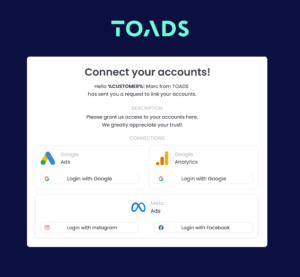
Get Started with LinkMyAgency Sign up for a free 14-day trial in just a minute—no credit card required. Experience how LinkMyAgency can facilitate your agency operations, endorsed by industry giants like Meta, Google, and TikTok.