

Apple Business Connect is a powerful tool for managing your business information across Apple platforms like Maps and Search. This DIY guide will walk you through gaining access to your Apple Business Connect account and inviting team members to collaborate efficiently. Learn how to optimize your business presence and streamline user management with ease.
Understanding Apple Business Connect and Why Access Matters
Apple Business Connect is a digital resource that lets businesses manage and edit their business details on Apple Maps and Apple Search. By ensuring your business details, including operating hours, contact information, service details, and location, are accurate, you help customers reach you more efficiently. Enhanced visibility on Apple’s platforms can translate into an improved customer engagement and potentially higher sales.
Verification of business ownership is the linchpin of Apple Business Connect. This process certifies that you are, indeed, the owner and have authorized control of your business’s digital appearance on Apple’s platforms. Once verified, you gain access to manage your business details, reviews, and photos, laying the groundwork for an effective digital strategy within the Apple ecosystem.
Gaining access to your Apple Business Connect account isn’t just about staying current; it’s about proactively managing your business’s online presence in one of the most utilized tech spaces worldwide. Understanding this tool and its significance is an invaluable addition to your modern marketing arsenal.
Gaining Access to Apple Business Connect
Having your business accessible on Apple Business Connect is crucial for visibility and accuracy of information. The first step to utilizing this platform is accessing your profile.
Here’s how:
- Visit business.apple.com and sign in using your Apple ID.
- After logging in, look for an existing business listing that matches yours by checking the onscreen list. If no matches are found, you can create a new listing by clicking on ‘Add New Place’. Fill in all required fields accurately.
- Verifying business ownership is the next critical step. Apple sends a postcard to your business address with a verification code. Enter this code on the platform to authenticate business ownership.
If you encounter access issues, check these common areas:
- Make sure your Apple ID is linked to the correct email account.
- Ensure your business address is accurate for the postcard to reach. Incorrect addresses are a common cause for failed verification.
- If the postcard doesn’t arrive, request a new one.
By following these step-by-step instructions, you’ll swiftly navigate potential roadblocks and set a solid foundation for managing your business listing effectively. Now, let’s move onto inviting users and team members to your Apple Business Connect.
Inviting Users and Assigning Roles
After getting access to Apple Business Connect, the next crucial step is to invite other team members to help manage your business listing. On the account homepage, navigate to the ‘Users’ section. From here, you can invite new users by clicking on ‘Invite New Users’ and inputting their email addresses. Next, assign them either ‘Owner’, ‘Admin’, or ‘Editor’ roles based on their responsibilities.
‘Owners’ have complete access and control, ‘Admins’ can make changes and invite others but can’t delete the listing, while ‘Editors’ only have editing privileges. Ensure you’re mindful of the level of access you’re granting.
Managing User Access and Collaboration
A critical aspect of using Apple Business Connect effectively is proper management of user access. Regularly review the list of users to ensure that only active and necessary team members have access. Remove any users that no longer need access to your business profile by clicking on their name and selecting ‘Remove’.
As a best practice, promote collaboration within your team by setting up regular meetings to discuss updates on listings, reviews, and changes. Utilizing the ‘activity log’ feature can help track changes and ensure accountability.
Maintaining Security
While expanding access, your business’s security should be a top priority. Never share sensitive credentials, and make sure team members also observe best practices for protecting their login information. Regularly update your passwords and use the two-factor authentication feature for added security.
Conclusions
Gaining access to Apple Business Connect and inviting users is essential for effective business management on Apple platforms. By following the steps outlined, marketing agency clients can control their business information, enhance local visibility, and collaborate seamlessly with their teams. Start managing your Apple Business profile today to unlock these benefits and stay ahead in local search.
Alternative Access with LinkMyAgency
Another approach involves using LinkMyAgency to streamline the access process:
Send a Link: With LinkMyAgency, send a link to your client that allows them to easily grant you the necessary access without complex steps. No more frustration for either you explaining the steps, or your client not finding how to invite you.
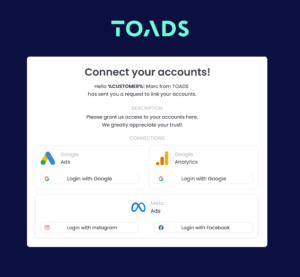
Get Started with LinkMyAgency Sign up for a free 14-day trial in just a minute—no credit card required. Experience how LinkMyAgency can facilitate your agency operations, endorsed by industry giants like Meta, Google, and TikTok.