

Managing website and domain access on GoDaddy is essential for smooth collaboration. This guide will walk you through how to gain access to a GoDaddy account and easily invite users, ensuring you maintain control and security of your digital assets.
Understanding GoDaddy User Access and Permissions
User access on GoDaddy pertains to the level of control a user has within a GoDaddy account. It’s critical to manage permissions carefully as they dictate what functions users can perform. Mismanagement of such permissions may lead to security breaches or unauthorized actions.
GoDaddy provides various roles or permission levels. The Account Owner has comprehensive control over all aspects. They can add or remove users, manage settings, purchase products, and more.
In contrast, Delegate Access allows a user to perform specific actions without gaining full access. This method is the primary way GoDaddy account control is shared, preserving the crucial aspect of not sharing passwords.
Assigning appropriate permissions has multiple benefits, including:
– Security: Prevent unwanted access and actions in the account.
– Accountability: Knowing who has what access aids in tracking activities.
– Streamlined collaboration: Delegates can perform their tasks without hindrance, streamlining workflow in marketing projects.
Understanding how to manage these roles and permissions confidently on GoDaddy will contribute to the secure and efficient running of any online project.
Gaining Access to a GoDaddy Account
The first step towards gaining access to a GoDaddy Account is to request Delegate Access from the Account Owner.
1. Start a formal request, mentioning that you require Delegate Access for business-related purposes. Ensure you provide a valid email address as it makes the process smoother.
2. The Account Owner will then send an invitation from their GoDaddy account to your email which you must accept to gain Delegate Access.
This method underscores the importance of security and privacy as it negates the need to share passwords and other sensitive information. Also, it allows control over the specific areas of the Account one will be able to access.
If you are facing issues accessing the invitation, ensure your email provider is not marking these mails as spam. Refresh your inbox and look through your spam folder too. For any persisting problems, you can reach out to the Account Owner to resend the invite or contact GoDaddy’s Customer Support for assistance.
Once you receive your invitation, clicking on the link would require you to sign in with your GoDaddy username and password or create a new account if you do not have one. Post login, you may be required to undertake additional verification processes, ensuring the safety and security of all users on the platform.
Inviting Users Safely and Effectively on GoDaddy
Now that you have accessed or gained delegation access to a GoDaddy account, you might need to invite other users. As an account owner, doing this is simple thanks to GoDaddy’s Delegate Access.
Firstly, visit your account settings and find the Delegate Access option. Click on “Invite to Access”, then enter the user’s name and email address. Click on “Invite” to send the invitation. You’ll be able to assign which permissions each user has, whether they can simply purchase and manage products or have full access over the account. It’s essential to carefully consider who you invite and assign permissions based on the minimal required level of access for the job.
To manage your existing delegates, return to the Delegate Access screen. You can easily modify permissions or remove users altogether. It’s important to regularly update delegate access: removing individuals who no longer need access, updating permissions based on changing roles, and adding new delegates as needed will help ensure the security and efficiency of your GoDaddy account management.
Remember, inviting users safely and effectively requires thoughtfulness. It’s easy to invite anyone to your GoDaddy account, but it’s crucial to thoroughly consider which permissions each individual should have. Otherwise, you might be opening up your account to security risks. Be meticulous and review updates regularly to keep everything running smoothly and safely.
Conclusions
By following these steps, you can efficiently manage user permissions on GoDaddy, enabling collaboration while safeguarding your domain and website. Inviting users is straightforward and keeps your account secure, making it easier to work together with your marketing team or partners.
Alternative Access with LinkMyAgency
Another approach involves using LinkMyAgency to streamline the access process:
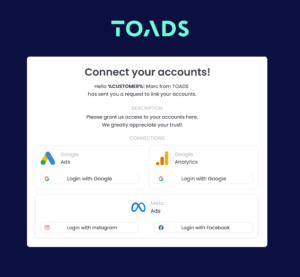
Send a Link: With LinkMyAgency, send a link to your client that allows them to easily grant you the necessary access without complex steps. No more frustration for either you explaining the steps, or your client not finding how to invite you.
Get Started with LinkMyAgency Sign up for a free 14-day trial in just a minute—no credit card required. Experience how LinkMyAgency can facilitate your agency operations, endorsed by industry giants like Meta, Google, and TikTok.