
Klaviyo is a powerful marketing automation platform that helps businesses grow through targeted email campaigns. To collaborate effectively, gaining access to a Klaviyo account and inviting users is essential. This guide will walk you through the simple steps to get access and invite team members seamlessly.
Requesting Access to a Klaviyo Account
Requesting access to a Klaviyo account starts with identifying the existing account admin or owner. This is a crucial step as they are the ones who can grant access privileges. As a client or team member, initiate the request by directly communicating via email or other established communication channels, providing necessary details such as your email address and the role you’d be serving (Admin, Analyst, or Manager).
It is important to be clear and concise when communicating your request to speed up the process and avoid any misunderstandings. Specify your role’s respective duties adequately to allow the admin to configure the access settings appropriately. This clear line of communication ensures that the access grant process is smooth and will establish your role within the Klaviyo account effectively.
Remember, the first step in gaining access is requesting for it, once this is done, you’ll be well on your way to use Klaviyo’s multitude of features as an admin, analyst or manager.
How to Invite Users in Klaviyo Once You Have Admin Access
Now that you’ve gained admin access to a Klaviyo account, inviting users becomes quite straightforward. Navigate to your account settings by clicking on the ‘Account’ tab, located on the upper navigation bar. From the drop-down menu, select ‘Users’. On this page, you can manage and invite new users to your Klaviyo account.
To invite a new user, simply click on the ‘Invite User’ button. You’re then prompted to enter essential details about the new user, including their email address, and role. The role you choose will determine the level of access the new user will have on the platform. With options like Admin, Analyst, or Manager available, it’s important to choose a role that corresponds best with the user’s duties and responsibilities.
After submitting the necessary details, just click ‘Send Invite’ to complete the process. The invited user will then receive an email from Klaviyo with instructions on how to accept the invitation and set up their account.
When inviting users, remember to carefully consider their specific duties. Granting unnecessary admin privileges can pose a security risk. In the following chapter, we’ll delve deeper into user role management to maintain security while enabling smooth team collaboration.
Managing User Roles and Ensuring Secure Collaboration
Once you have successfully invited users to your Klaviyo account, managing user roles effectively helps maintain a secure and efficient workspace. Understanding the roles available, with Admin having the highest privileges followed by Manager and Analyst, is essential to align permissions with individual responsibilities.
Admins have full access, Managers can create and edit content but not alter account settings, while Analysts can only review analytics and make no changes. To change user roles, go to Account Settings > Users, choose the correct user, and select the new role.
Security is of utmost importance and there are various best practices recommended. Limit the number of Admins and only grant high-level access to trusted users. Make sure users maintain a strong password and remind them to update it regularly. Lastly, perform regular account audits to verify only authorized users have access.
By adhering to these strategies, you can mitigate security risks while facilitating seamless collaboration among your team.
Conclusions
Accessing and managing users in Klaviyo is straightforward but crucial for smooth marketing operations. By clearly requesting access, properly inviting users with appropriate roles, and managing these roles responsibly, you can ensure effective teamwork and account security. Following this guide will empower you to collaborate seamlessly and make the most of Klaviyo’s powerful features.
Alternative Access with LinkMyAgency
Another approach involves using LinkMyAgency to streamline the access process:
Send a Link: With LinkMyAgency, send a link to your client that allows them to easily grant you the necessary access without complex steps. No more frustration for either you explaining the steps, or your client not finding how to invite you.
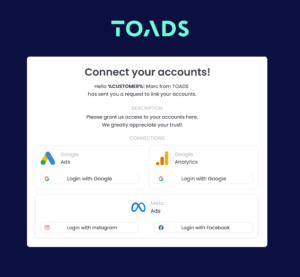
Get Started with LinkMyAgency Sign up for a free 14-day trial in just a minute—no credit card required. Experience how LinkMyAgency can facilitate your agency operations, endorsed by industry giants like Meta, Google, and TikTok.