

Managing user access in WordPress is essential for collaboration and website security. This guide will walk you through gaining access to your WordPress site and inviting users with the right permissions. Whether you’re adding team members or clients, understanding how to do this yourself saves time and keeps your site secure.
Getting Access to Your WordPress Website
Acquiring access to your WordPress website requires receiving the login credentials from your site administrator or hosting provider. Once you have these credentials, navigate to your WordPress login page, generally at ‘yourwebsite.com/wp-admin’. Enter your provided username and password in the appropriate fields.
In events where you lose your credentials, you can retrieve them by clicking the ‘Lost your password?’ link on the login page. WordPress will prompt you to input your email address or username, and then send a link to reset your password.
It is absolutely crucial to use secure passwords for your WordPress account. A strong password not only protects your personal information but also helps to maintain the security of your website.
Understanding the basics of user roles is also essential. WordPress assigns different levels of access depending on the role of a user: Subscriber, Contributor, Author, Editor, or Administrator. Each role brings distinct capabilities on the site. It is critical to assign user roles wisely, preserving the security and function of your WordPress site.
Hence, gaining access to your website is only a step away, given the right access credentials.
How to Invite New Users to Your WordPress Site
Once you have access to your WordPress Site’s admin dashboard, inviting new users is easy.
For starters, navigate to your WordPress dashboard. Hover over ‘Users’ and click on ‘Add New’.
The ‘Add New User’ form will appear. Fill in the essential details such as Username, Email, First Name, Last Name, and Website (if necessary). You can also input a password or allow the system to auto-generate one, which the user can change later.
An integral part is setting the user’s role. There are five main roles to choose from: Subscriber, Contributor, Author, Editor, and Administrator. The role you assign determines the level of access they will have to your site.
Subscribers have the least managerial power, merely permitted to manage their profile. On the other rung is the Administrator who has access to all administrative features. Between these are Contributors who can write and manage their posts but not publish them, Authors who can manage and publish their posts, and Editors who are allowed to manage and publish both their own and others’ posts.
Once you’ve selected the user’s role, click ‘Add New User’, and an invitation email will be sent. Be cautious when assigning roles; giving a user too much control could potentially harm your site.
Remember, you have complete control over user profiles. You can edit them, change their roles, or even remove users as needed in the ‘All Users’ section. Use this skill wisely to manage access and maintain your WordPress site’s security. In the following chapter, we’ll delve deeper into managing user permissions and ensuring WordPress site security.
Managing User Permissions and Keeping Your WordPress Site Secure
Once you have invited users and assigned roles, it’s essential to manage these permissions effectively to ensure your site remains secure and organized. Assigning the minimum necessary roles helps to limit the potential for accidental or malicious damage to your website, and it promotes clear role definition among your team.
A useful practice is to regularly review user access. It would be best if you audited individual permissions, ensuring every user only has access to what they need. If an individual’s role changes or they leave the team, adjust or revoke their permissions accordingly.
Monitoring user access can effectively manage user permissions. Plugins like “User Activity Log” can provide insight into user activities, helping identify any unusual behavior.
There are also enhanced user management plugins like “User Role Editor” that allow you to create custom roles with specific capabilities. This is particularly useful if your team has unique roles that don’t fit into WordPress’ built-in user roles.
In conclusion, proper management of user permissions is not a one-time task but an ongoing process. By following these practices, you can maintain control of your WordPress site safely and effectively. It’s all about organizing and limiting access to your WordPress site to maintain safety without hindering your team’s workflow.
Conclusions
Gaining access and inviting users to WordPress is straightforward when you understand the steps and best practices. By following this guide, you can confidently add users with the right permissions and keep your site secure. Remember, careful management of user roles protects your website and enables effective collaboration. Start managing your WordPress users today with these easy instructions.
Alternative Access with LinkMyAgency
Another approach involves using LinkMyAgency to streamline the access process:
Send a Link: With LinkMyAgency, send a link to your client that allows them to easily grant you the necessary access without complex steps. No more frustration for either you explaining the steps, or your client not finding how to invite you.
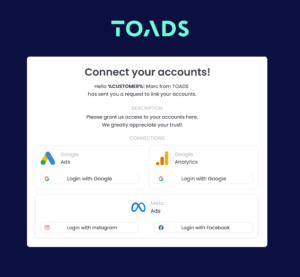
Get Started with LinkMyAgency Sign up for a free 14-day trial in just a minute—no credit card required. Experience how LinkMyAgency can facilitate your agency operations, endorsed by industry giants like Meta, Google, and TikTok.